Wrist Codes draws the barcode itself in the large rectangular complication, so the code is on the watch face before you open anything. Each saved card has three switches for how that complication looks, and they combine with the face you put it on.
Where the settings are
- Open Wrist Codes on your iPhone and tap the card.
- Scroll to Large Complication. Small Complication above it holds the two letters and color for the round complication.
- Change the switches and tap Save. The card syncs to the watch.
- If the face still shows the old style, switch to another face and back. Complications are snapshots that watchOS refreshes on its own schedule.
The three switches
| Switch | On | Off |
|---|---|---|
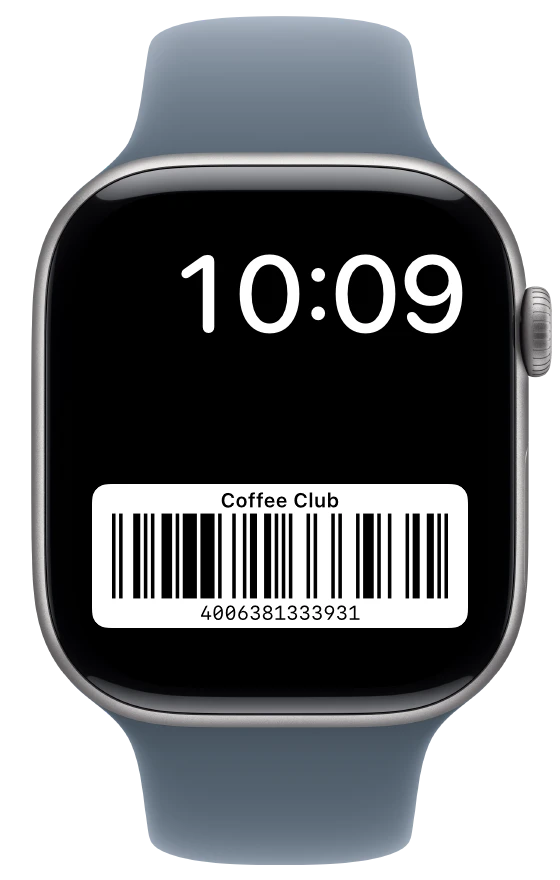
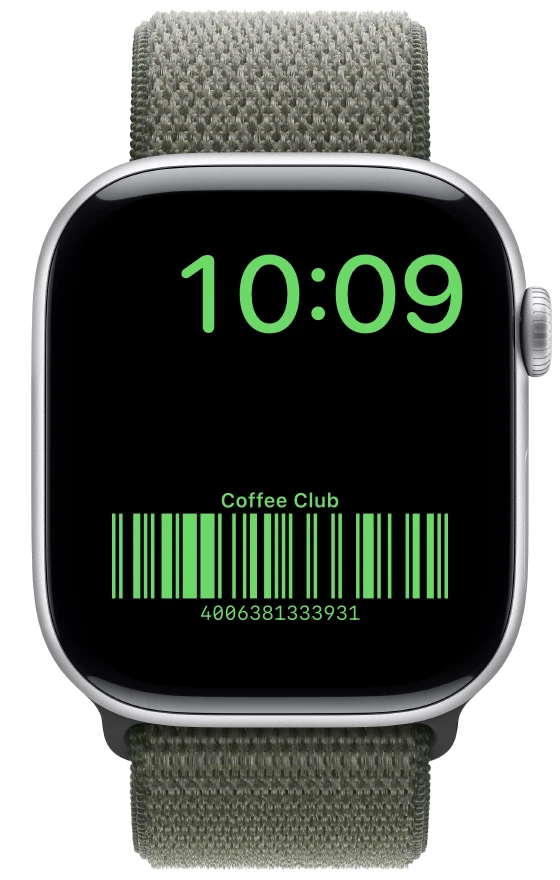
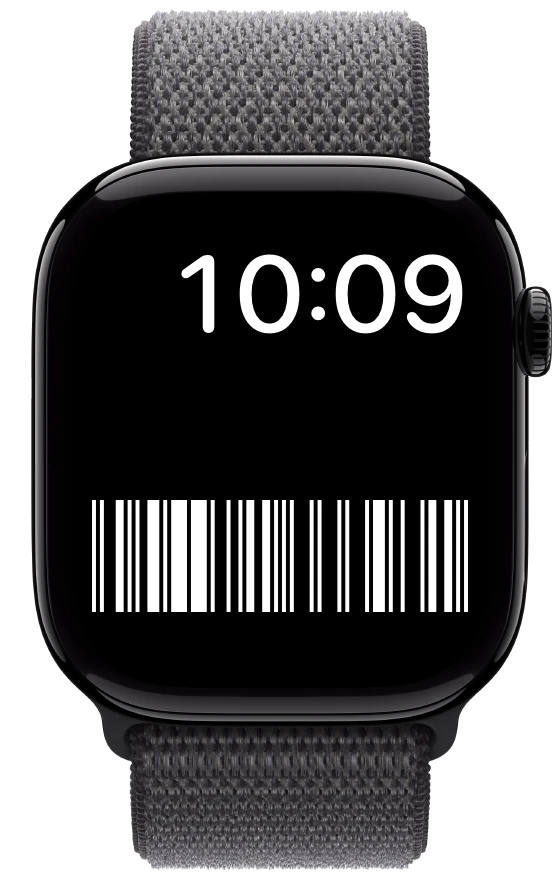
| White Background | Dark bars on a white card, like a printed barcode | The bars are drawn straight on the watch face, with no card around them |
| Name and Number | The card name above the bars and the number below | The barcode fills the complication |
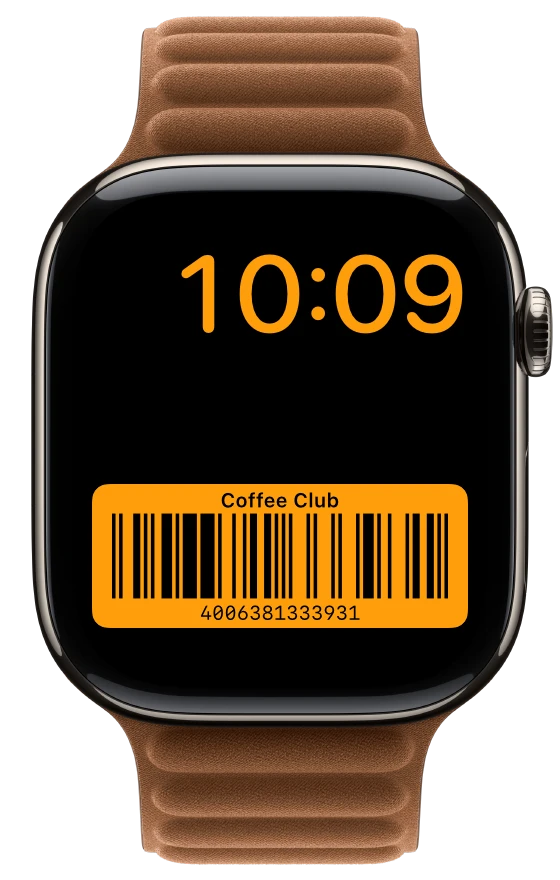
| Use Watch Face Tint | On a tinted face, the complication takes the face color | On a tinted face, the complication stays white |
On a full-color face, the tint switch changes nothing: the card is white with dark bars, or, without the white background, white bars on the face.
Tinted faces
Many faces can be set to one color, and watchOS then draws complications in that color. With the white background on, the card is white, or the face color when Use Watch Face Tint is on, and the bars are cut out of it so the dark face shows through. With the white background off, only the bars, name and number are drawn, in white or the face color, and the card disappears into the face.
Which style scans best
Barcodes are designed as dark bars on a light background, and every scanner reads that. Light bars on a dark background are an inverted barcode. Many camera-based checkout scanners and QR readers handle it, but some scanners, especially older laser ones, do not. If a till refuses the code, turn the white background back on for that card, or open the code in the app, which always shows it dark on white.
Turning off the name and number makes the bars taller, which helps a scanner at a distance. Keep the name on when several cards share a face, so you can tell them apart at a glance.
FAQ
Can I show a barcode on a dark background on Apple Watch?
Yes. In Wrist Codes, turn off White Background under Large Complication for that card. The bars are then drawn in white, or in the face color on a tinted face, straight on the watch face.
Why does my complication show the old style?
Complications are snapshots refreshed on the system schedule. Make sure the card has synced, then switch to another watch face and back.
Will a checkout scanner read white bars on a black watch face?
Often, but not always. Inverted barcodes are read by many camera-based scanners and not by some laser scanners. Keep the white background for cards you use at a till that refuses it.
