
Convert HEIC, WEBP and AVIF to JPG
The photo you were sent, in a format you can open
A Mac app for the formats people receive and cannot open: HEIC from an iPhone, WEBP from a web page, AVIF from a newer one. It converts them to JPEG, PNG or HEIC at a quality you choose, identifies each file by its contents rather than its name, and tells you whether the camera details and the location will travel with the copy. Everything happens on your Mac, batches have no size limit, and no original is ever modified. Free, with nothing to buy inside.
Use the left and right arrow keys to change screenshot.

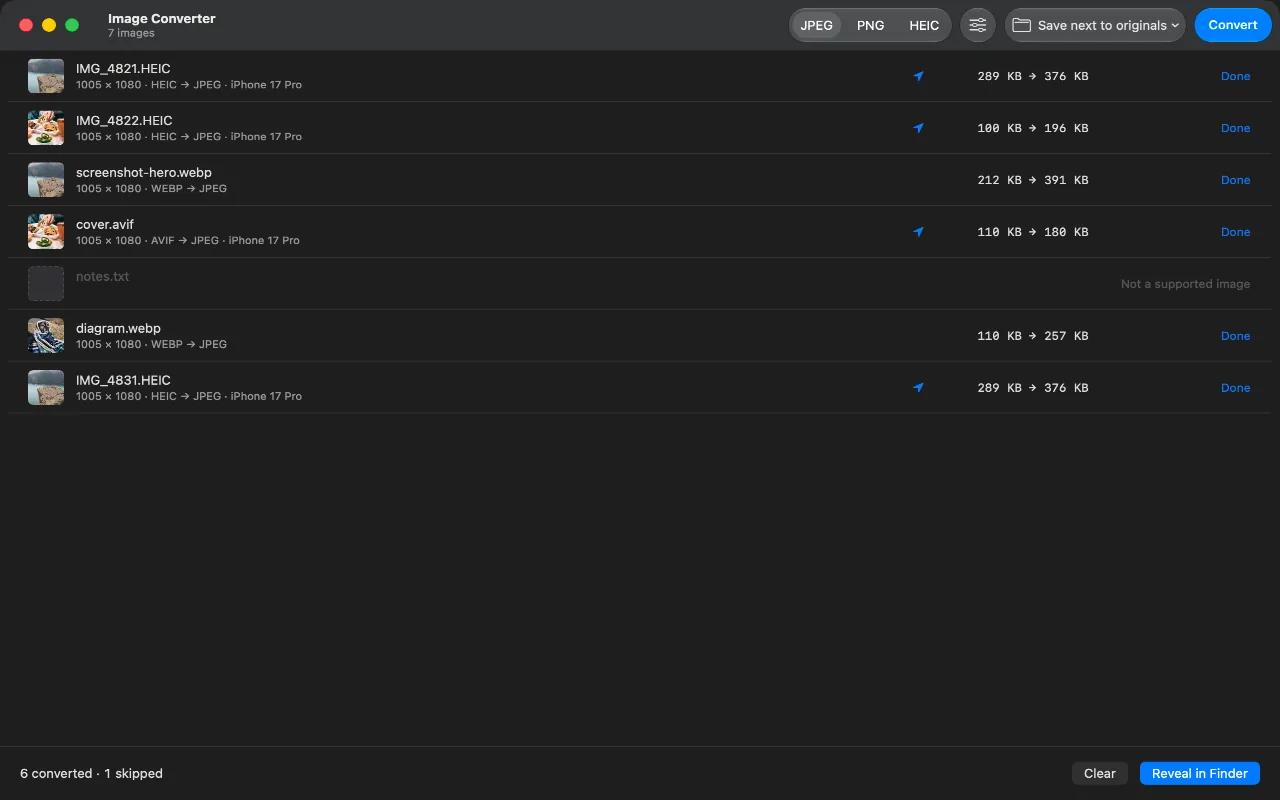
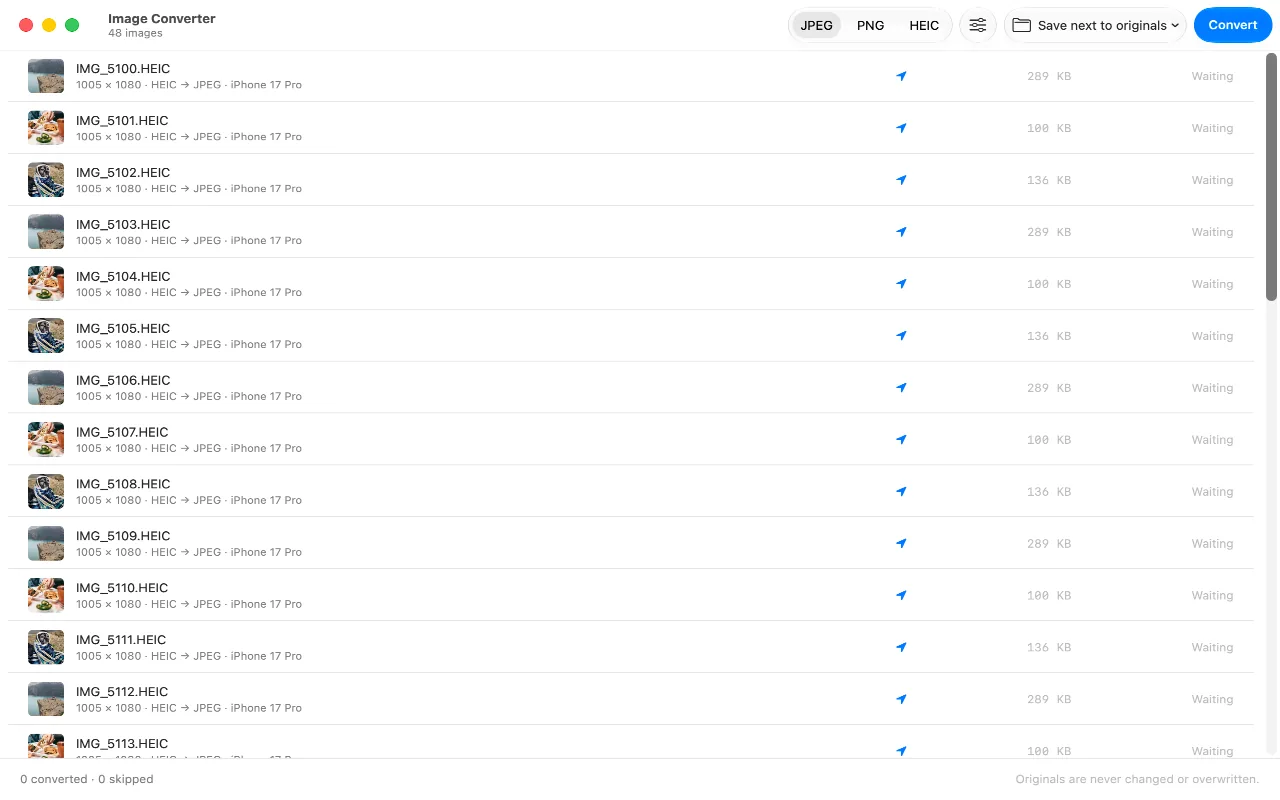
Screenshot 1 of 3: Every file identified from its contents: the size, what it will become, the camera that took it, and whether it carries a location.
Features
- Nothing is uploaded, ever. Search for "convert HEIC" and almost every result is a website, which means your photographs travel to a stranger's server and stay there under a policy you never read. This app contains no networking code at all.
- It tells you the truth about size. Converting to JPEG usually makes files larger, because JPEG is thirty years older than the format you are leaving behind. The numbers shown here are the real ones, and they go up when they go up.
Drop, pick, convert
- 01
Drop the files in
Or a whole folder, or open them from the panel. HEIC, WEBP, AVIF, PNG, JPEG, TIFF, and whatever else your Mac can read: the app asks the system at launch instead of promising a fixed list.
- 02
See what you actually have
Every row shows the dimensions, the format read from inside the file rather than off its name, the camera that took it, and a pin if the photo carries a location.
- 03
Choose the format and the destination
JPEG, PNG or HEIC, at a quality you set, saved beside the originals or into a folder you pick. One switch decides whether the camera metadata travels, and the pins in the list update to match.
- 04
Convert, then check the numbers
Every row shows the size before and after. Nothing is estimated, and nothing is rounded into a claim about savings.
The parts other converters leave out
After the run
What it cost, in real numbers
Six files converted and one skipped, each with its size before and after. Most of the numbers go up, because that is what converting to JPEG does, and an app that hid it would be lying about the trade. What you get in return is a file that opens everywhere.
Set once
Defaults, and a promise about your originals
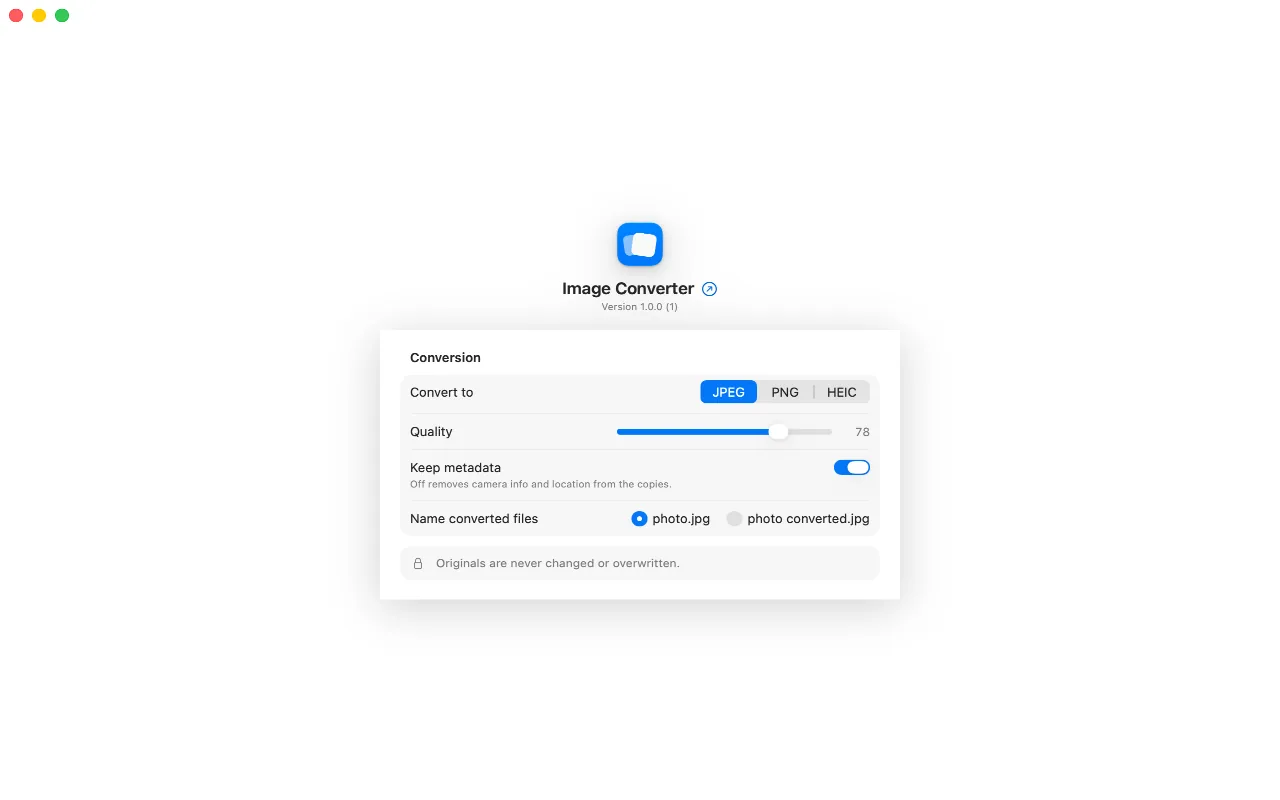
The format, quality and metadata setting you want every time, plus how the copies are named. Underneath sits the sentence the whole app is built around: originals are never changed or overwritten. A conversion only ever adds a file.
What you get
- The three formats people get stuck on. HEIC from an iPhone, WEBP from a web page, AVIF from a newer one. These three are why anyone goes looking for a converter, and each is identified by reading the file itself, never by guessing from the extension.
- No limit on a batch. Seven files or seven hundred, as often as you like. There is no cap, no daily allowance, and no paid tier waiting to raise one, because there is no paid tier.
- Your originals are never touched. Every conversion writes a new file. Nothing is modified in place, nothing is overwritten, and there is deliberately no option anywhere in the app to delete what you started with.
- The location travels only if you say so. A photograph records where it was taken. Rows with coordinates show a pin, the pin is struck through when the copies will be written without them, and the switch that decides is one click away in the title bar.
- A quality dial, not a size preset. Finder's built-in Convert Image offers Small, Medium and Large. This app offers the number that actually decides the trade-off, applied consistently to every file in the batch.
- Copies where you want them. Beside the originals, which is usually what you want, or in a folder you choose once. The title bar always states which of the two is about to happen.
- When it cannot convert, it says why. A file that is not an image is skipped, with the reason on its own row. A damaged file is flagged as possibly damaged instead of failing the whole batch. Nothing stops halfway with a dialog you have to dismiss.
- No account, no analytics, no network. Nothing to sign in to and nothing being counted. The app makes no network requests of any kind, which makes for the shortest possible privacy policy.
Why the copies come out bigger
People convert images expecting to save space, and this is the one case where converting costs space instead. That deserves a plain explanation rather than a footnote.
JPEG was standardised in 1992 and has not changed since. HEIC and AVIF are still images built from modern video codecs, and they store the same photograph, at the same visual quality, in roughly half the bytes. Converting to JPEG runs that in reverse: a 289 KB HEIC becomes a 376 KB JPEG, and a 110 KB AVIF becomes a 177 KB JPEG. Those figures are measured, at a quality where the loss is invisible.
So this is a compatibility tool, not a compression tool. The extra bytes buy a file that every piece of software on earth can open, which is worth a great deal on the day something refuses to open the one you have. If space is what you are short of, the useful dial is quality, and the useful direction is the other way: converting JPEG to HEIC roughly halves the size.
Guides
- Convert HEIC to JPG on a MacStep-by-step instructions for Finder, Preview, Photos and Terminal, plus a better option for large batches.
- Open and convert WEBP on a MacOpen WEBP in Preview, then convert one file or a whole folder to JPG or PNG.
- What an AVIF file isWhat AVIF is, which Mac apps open it, and when to convert it to JPG or PNG.
- Why a converted JPEG is biggerWhy modern image formats make smaller files, and how to reduce JPEG size safely.
- Stop your iPhone saving HEICUse Most Compatible for new JPEG photos, or Automatic transfer to convert only when exporting.
- HEIC converters for Mac comparedBuilt-in tools, free and paid apps, and websites compared for converting HEIC photos.
FAQ
Is it really free?
Yes. No purchases inside, no paid tier, no batch limit to unlock, no watermark, and no subscription. It is a small tool that does one thing.
Are my photos uploaded anywhere?
No. The app contains no networking code, so there is no server it could send them to, even by accident. That is the main reason to prefer it over the websites that dominate the search results for converting HEIC, where your photograph is uploaded to a machine you know nothing about before anything happens to it.
Can it convert to WEBP?
No, and neither can any app built on macOS's own image frameworks. The system reads WEBP perfectly well but does not write it, so the output formats are JPEG, PNG and HEIC. Reading WEBP is what people actually need, and that works.
How many files can I convert at once?
As many as you can select. There is no cap in the app, and no tier that would introduce one. The screenshot above shows a camera card of 48 photographs, and there is nothing special about 48.
Will it change or delete my originals?
It cannot. Every conversion writes a new file, either beside the original or into the folder you chose, and there is no delete-after-converting option anywhere in the app, by design.
Does the converted copy still know where the photo was taken?
Only if you leave Keep metadata on. Rows for photographs with coordinates show a pin, which is struck through when the copies will be written without them. Turning the switch off strips the camera information and the location from every copy in the run.
Which macOS versions can read AVIF?
Recent ones, at the system level, and the app asks your Mac at launch rather than promising a list. On a Mac that decodes AVIF, the app converts it like anything else. On one that does not, the row says so instead of failing partway through a batch.
Is there an iPhone version?
No. On an iPhone the problem barely exists: photos are already in the format the phone prefers, and sharing converts them on the way out. The friction lives on the Mac, where a file arrives and something refuses to open it.
Get Image Converter
HEIC, WEBP and AVIF into files that open everywhere, without your photos leaving the Mac.
 (opens in a new tab)
Free, with no uploads, no accounts, no batch limits and no purchases · Contact support
Support small, independent apps
If Image Converter has been useful to you, you can support more small apps like it.
 Buy me a coffee