
Copy or translate any text on your screen
For the text you can see but cannot select
A menu bar app for the text you can see but cannot select: a photo of a sign, a paused video, a slide in a screen share, a scanned PDF, a label inside an app. Press a shortcut and drag a box around the text to capture it, and it lands on your clipboard ready to paste. Capture it with the other shortcut and the translation appears in a small card right beside it. Pin an area, such as the subtitles of a video, and it stays translated as the text in it changes. Text you can select is quicker still: copy it, press a third shortcut, and the translation appears at the pointer. Text recognition and translation both run on your Mac, nothing is uploaded, and it is free.
Use the left and right arrow keys to change screenshot.
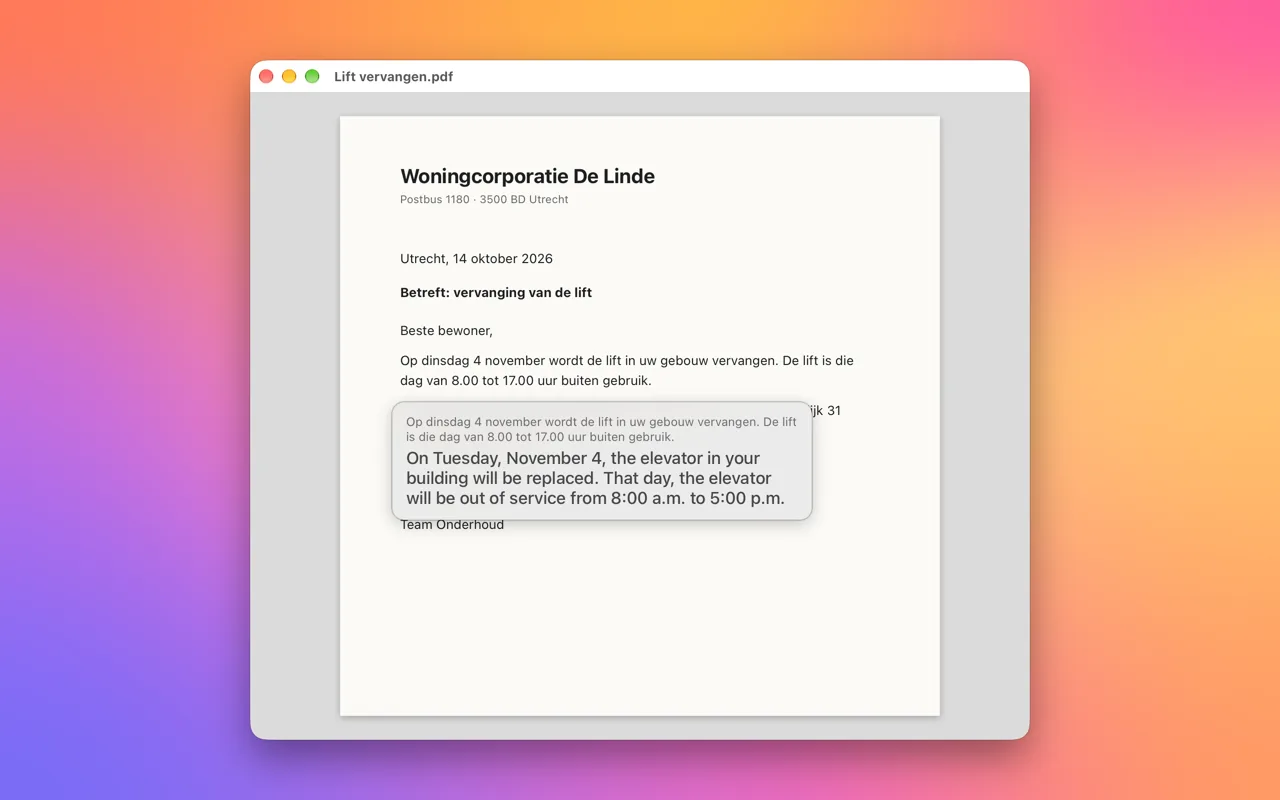
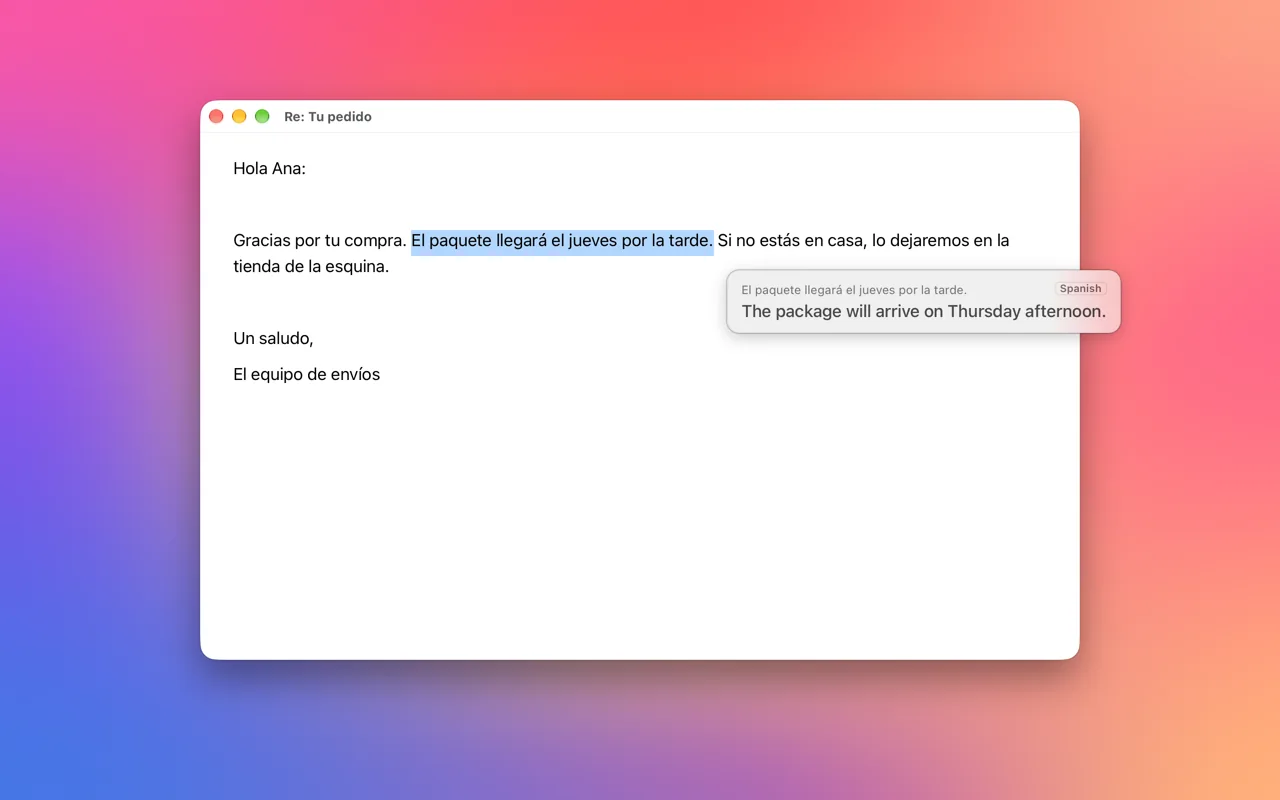
Screenshot 1 of 5: A photographed notice nobody can select. Capture it with a drag and the translation appears right underneath.
Features
- Two shortcuts, two jobs. One copies the text you point at. The other translates it. The app never translates what you meant to copy, and never copies what you only wanted to read.
- Nothing leaves your Mac. Text recognition is Apple's on-device Vision framework and translation uses the languages downloaded to your Mac. The app has no network access of its own, so there is nothing it could upload.
Capture, then copy or translate
- 01
Press a shortcut to start a capture
Control-Option-C captures text to copy, Control-Option-D captures text to translate. The screen holds still and the pointer becomes a crosshair. Both shortcuts can be changed.
- 02
Drag a box around the text, or click a word
Nothing needs to be selected first. A drag reads everything inside the box. A single click reads just the word under the pointer, which is the quick way to look one up.
- 03
Paste it, or read it
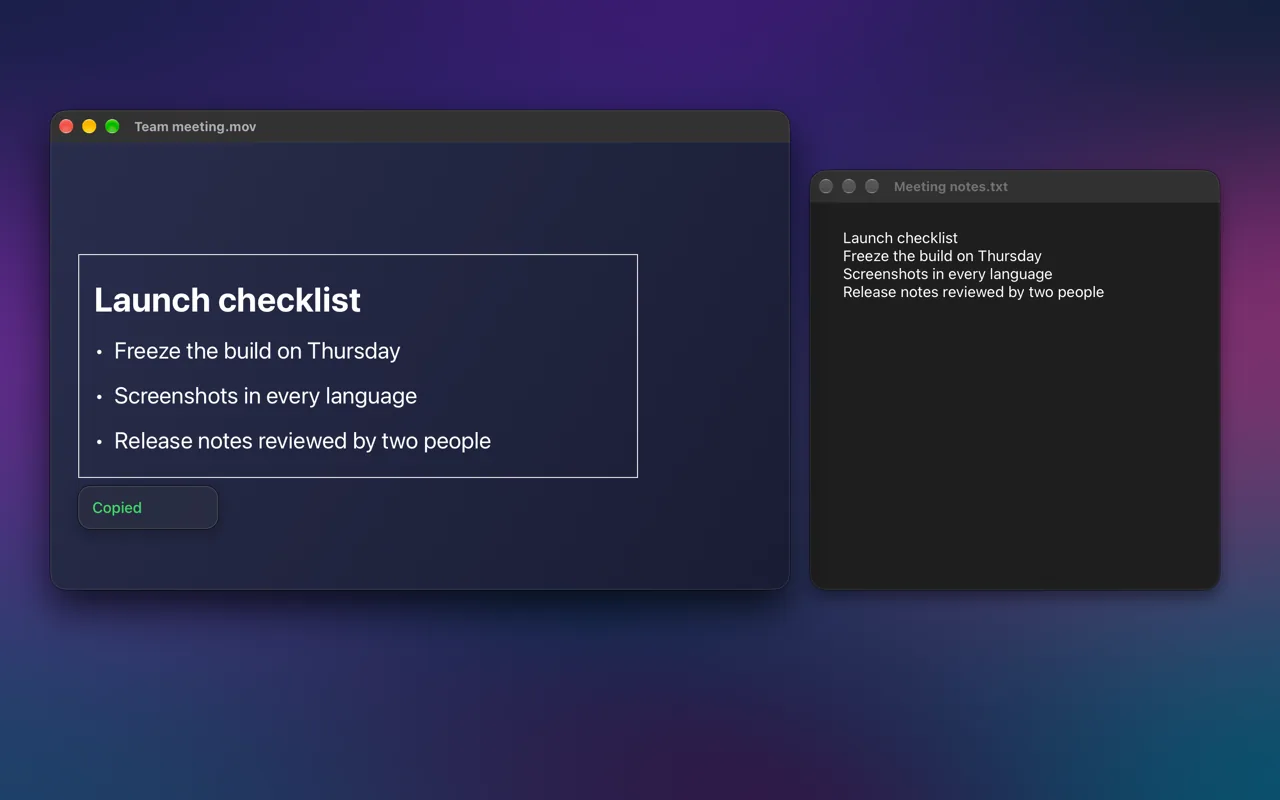
Copied text keeps its line breaks, so a list pastes as a list. A translation appears in a small card beside the text; click the card to copy it, or press Escape to close it.
Hotkeys
- ⌃⌥Cto capture part of the screen and copy its text
- ⌃⌥Dto capture part of the screen and translate its text
- ⌃⌥Sto translate the text you just copied
- ⌃⌥Pto pin an area and keep it translated, or stop
- ⌃⌥Rto read the last area you captured again
- ESCto close the card or cancel a capture
The details that make it quick
Copy
Text from places that have no text
Video frames, screenshots, photos, scanned pages, remote desktops, and the labels inside apps that refuse to let you select them. If you can see it, you can copy it, and the lines come out in the order you read them.
Translate
In place, without switching apps
The translation sits right under the text it belongs to, with the original above it in small type. The app you were reading keeps going underneath, and the card closes when you click elsewhere or switch apps.
Pin
Keep an area translated while it changes
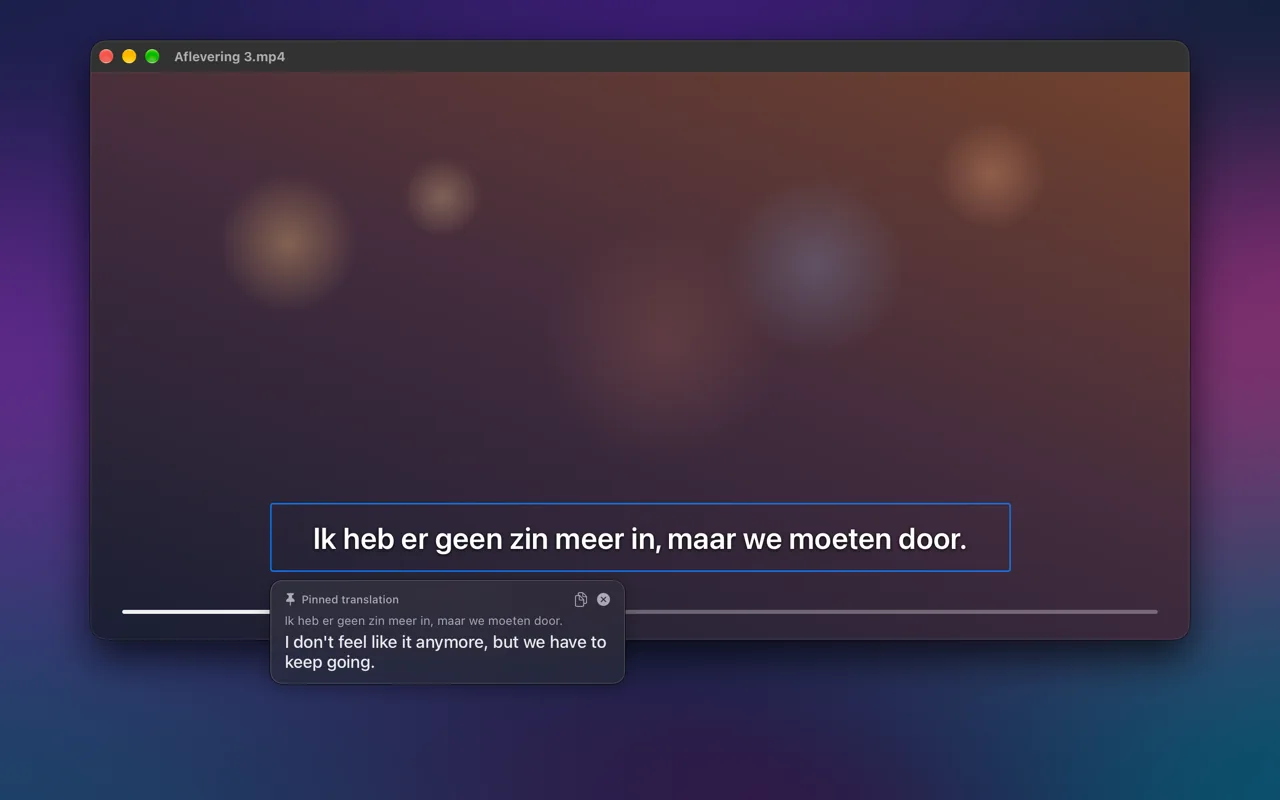
Subtitles, live captions in a call, the dialogue in a game, slides someone else is clicking through. Pin the area once and every new line is translated in a panel beside it while you keep watching. A small spinner shows when a new line is being read, and a line that has left the area stays dimmed until the next one arrives.
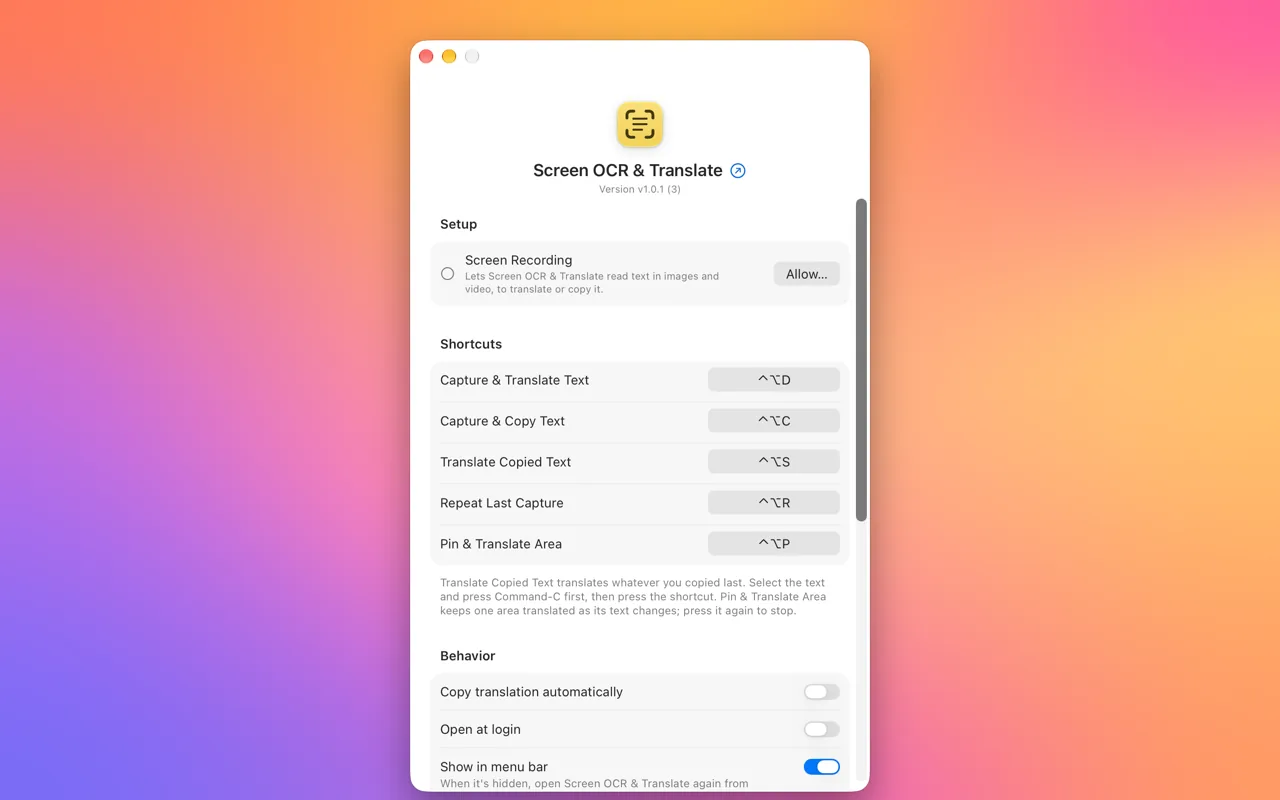
Settings
One permission, and shortcuts you choose
Screen Recording is the one thing the app asks for, because it is how any app sees the part of the screen you point at. Everything else is a preference: the shortcuts, the language to translate into, and whether the icon sits in the menu bar.
What you get
- Capture and copy text from anything visible. Images, videos, PDFs, screen shares, presentations and app interfaces. Recognition is the same on-device engine that powers Live Text, pointed at whatever you choose.
- Translate without leaving what you are reading. The card appears beside the text and stays out of the way. Click it to copy the translation, or Option-click it to copy the original.
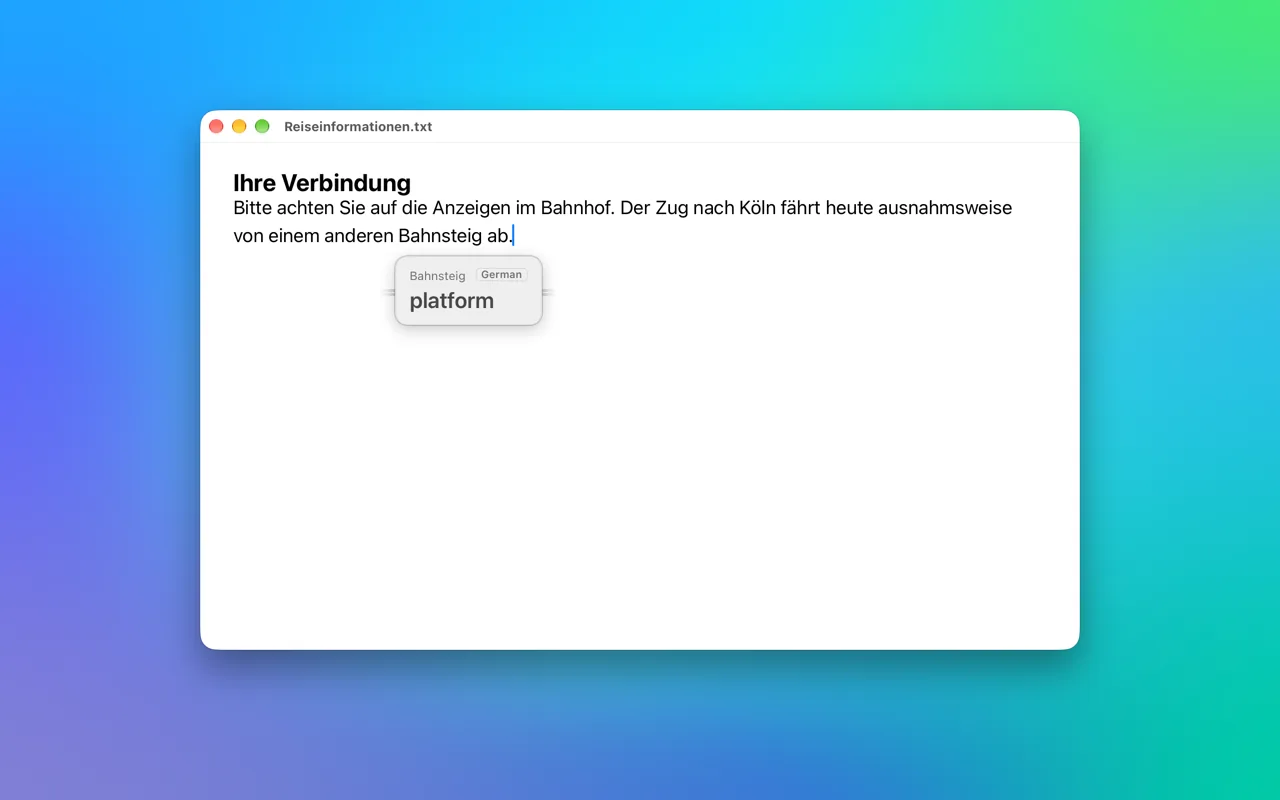
- Translate copied text in any app. For text you can select, press Command-C, then Control-Option-S. It works the same in every app and browser, because it reads what you copied.
- It learns your languages. The source language is detected each time, and the app remembers which language you translate most, so short phrases are read the way you expect.
- Pin an area that keeps changing. Press Control-Option-P and drag across subtitles, captions or any text that updates. It stays translated in a panel beside it until you press the shortcut again or click the close button.
- Repeat the last capture. Control-Option-R reads the same area again, to copy or translate it as you did last time. Handy for the next slide in the same spot, or a status that changes.
- A word at a time. Click once instead of dragging and only the word under the pointer is read. That is the quickest way to look up one unfamiliar word.
- Recent translations in the menu. The last few translations sit in the menu bar menu. Choose one to copy it again.
- Out of sight when you want it. Hide the menu bar icon and the shortcuts keep working. Open the app again from Applications or Spotlight to get back to Settings.
- No account, no analytics, no network. Nothing to sign in to and nothing being counted. Snapshots stay in memory for the moment recognition takes and are never written to disk, pinned areas included.
Permissions
The app asks for one permission, and only uses it when you press one of its shortcuts.
How to add the app manually
Translating copied text needs no permission at all: it reads the text you copied, and only when you press its shortcut.
Guides
- Copy text from an image on a MacLive Text in Preview and Photos, the screenshot trick, and a faster way for anything on screen.
- Copy text from a video on a MacLive Text on a paused frame, and what to do when the player does not support it.
- Translate text on your Mac screenSelected text, whole web pages, and text inside images and video, on device.
- Translate subtitles and changing text livePin one area of the screen, such as subtitles or live captions, and read every new line in your language.
- Translate selected text with a shortcutThe right-click Translate, and a keyboard shortcut that works in every app.
- OCR on a MacWhat text recognition is, where Live Text covers it, and where it does not.
- Fix Live Text not working on MacSettings, language, app support and image quality, in the order worth checking them.
- TextSniper alternatives comparedTextSniper, CleanShot X, Live Text and free options compared by price, privacy and steps.
- Translate on a Mac without internetDownload the languages first, then translate selected text or anything on screen offline.
FAQ
Is it free?
Yes. There are no purchases inside, no paid tier, no limit on how much you copy or translate, and no subscription.
Is anything uploaded?
No. Text recognition uses Apple's on-device Vision framework and translation uses Apple's on-device translation. The app has no network access of its own, so neither the snapshot nor the text can leave your Mac.
Why does it need Screen Recording?
Text inside a photo or a video frame is pixels, not text, and macOS only lets an app see other apps' pixels with Screen Recording. The app uses it only when you press one of its shortcuts, and only reads the area you then choose.
Doesn't macOS already have Live Text?
It does, in Photos, Preview, Quick Look, Safari and paused video in Apple's own players. This app works on everything else as well: remote desktops, screen shares, other video players, and the labels inside apps. It also needs no opening of a file first, just a shortcut.
Which languages can it translate?
The languages Apple's translation supports on your version of macOS. Translation into a language works once it has been downloaded; Settings lists what is downloaded and offers the rest.
How do I translate text I can select?
Select it, press Command-C to copy it, then press Control-Option-S. The translation appears in a card at the pointer. Copying first is what lets it work in every app: macOS only lets an app read another app's selection with the Accessibility permission, which a translator has no business asking for.
Which macOS does it need?
macOS 26.4 or later. It uses the newer translation models introduced there to translate in a fraction of a second.
Can it translate subtitles as a video plays?
Yes. Press Control-Option-P and drag across the subtitle area, and every new line is translated in a panel beside the video until you stop it. Some streaming apps black out protected video in every screen capture, and there it has nothing to read.
Can it read handwriting?
Neat handwriting often works, because the recognizer is trained on it, but it is built for printed and on-screen text. A messy note will come out with mistakes.
Get Screen OCR & Translate
Copy or translate any text on your screen, without it leaving your Mac.
 (opens in a new tab)
Free, with no uploads, no accounts and no purchases · Contact support
Support small, independent apps
If Screen OCR & Translate has been useful to you, you can support more small apps like it.
 Buy me a coffee