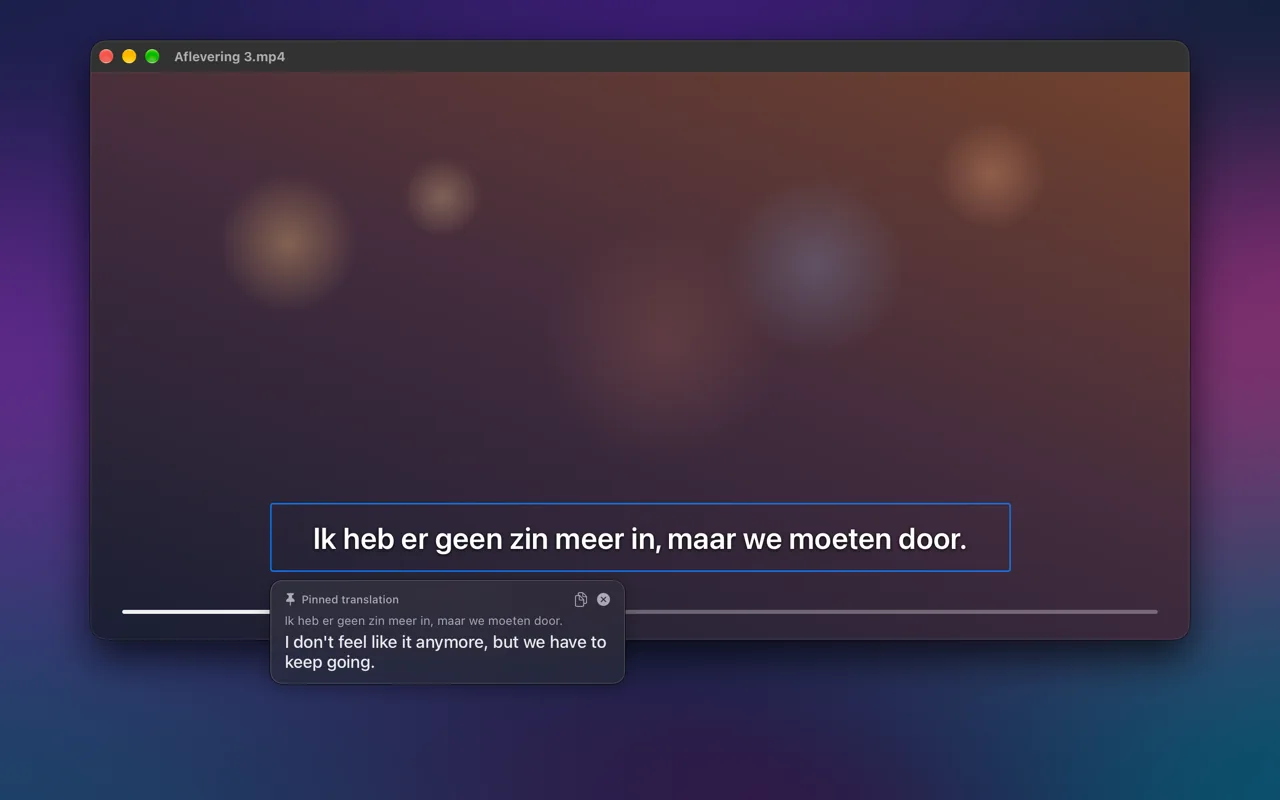
Some text on screen does not sit still. Subtitles change every few seconds, live captions in a call scroll past, and a game or a slide show replaces one line with the next. Capturing each one by hand means pausing every time. Screen OCR & Translate can pin the area instead: drag across it once and every new line is translated beside it while you keep watching.
Pin an area and keep it translated
- Press Control-Option-P, or choose Pin & Translate Area from the menu bar icon.
- Drag a box around the text that changes, for example the strip where subtitles appear.
- A blue outline stays around the area, and a panel beside it shows the original and the translation.
- Keep watching. When new text appears in the area, the panel shows its translation a moment later.
- Press Control-Option-P again, or click the close button on the panel, to stop.
What to pin
- Subtitles in a film or series that has none in your language, in any video player.
- Live captions in a video call or a webinar, so you can follow a meeting held in another language.
- Dialogue boxes in a game, which change with every click.
- Slides in a screen share or a recorded talk, while someone else clicks through them.
- A chat, a ticker or a status line in an app that updates on its own.
- Your own lesson material: pin the subtitles of a video in the language you are learning and check each line as you hear it.
Reading the panel
The panel sits just outside the outline, so it never covers the text it is reading. The small pin next to its title turns into a spinner while a new line is being read and translated, so you can tell a translation that is about to change from a settled one. When the text leaves the area, as subtitles do between lines, the last translation stays up, dimmed and marked No longer in the area, until the next line arrives.
The panel never takes the focus away from what you are doing, so the video keeps playing and the keyboard keeps working in it. The copy button on the panel puts the current translation on the clipboard.
Tips for a steady translation
- Pin just the strip the text appears in. Moving pictures inside the area make it read again more often, and other text inside it is translated too.
- Leave a little room around the text, because subtitles of two lines are taller than one.
- Only one area is pinned at a time. Pinning another one replaces the first.
- Recognition and translation run on your Mac, so it works offline once the language is downloaded. See translating without internet.
- Some streaming apps black out protected video in every screen capture. Where that happens there is nothing on screen to read, and the panel stays empty.
FAQ
Does pinning record my screen?
No recording is kept. While an area is pinned, the app looks at that area again every moment, reads it when it changes, and keeps nothing once the text is read. It never looks outside the area, and nothing leaves your Mac.
How quickly does a new line appear?
A moment after it appears. The area is checked four times a second, and a new line is read and translated as soon as it shows up, with the spinner on while that happens. Longer text takes a little longer.
Can I pin more than one area?
Not at the same time. Pin the area you need most; pinning a new one moves the outline and the panel there.
