Translating a selection on a Mac takes a right-click: select the text, Control-click, choose Translate. Apple gives that no keyboard shortcut, and it opens a panel you have to close again. When you translate many short things in a row, a shortcut is faster.
The built-in way: right-click, Translate
- Select the text in any app that supports it.
- Control-click the selection, or click with two fingers, and choose Translate.
- Change the languages from the menus in the panel if needed, or choose Copy Translation.
This works in most Apple apps and many others. Some apps, like Microsoft Word and Google Chrome, show their own menu instead, with their own translation or none at all.
A shortcut that works in every app
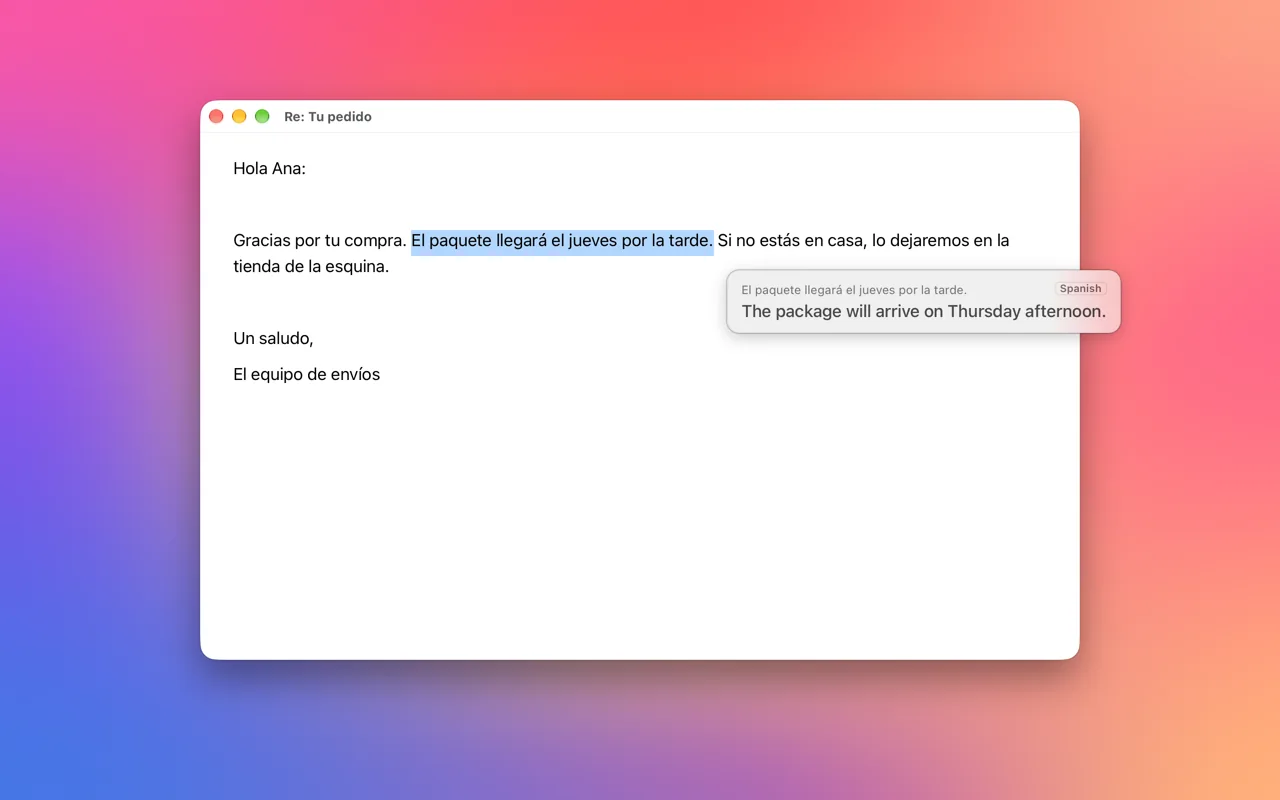
Every app on a Mac can copy, so the most reliable shortcut starts there. With Screen OCR & Translate running:
- Select the text and press Command-C.
- Press Control-Option-S.
- Read the translation in the card at the pointer. Click the card to copy the translation, or press Escape to close it.
Because it reads what you copied rather than asking the app for its selection, it behaves the same in Chrome, Slack, a terminal or anywhere else. The shortcut can be changed in the app's Settings.
When the text cannot be selected
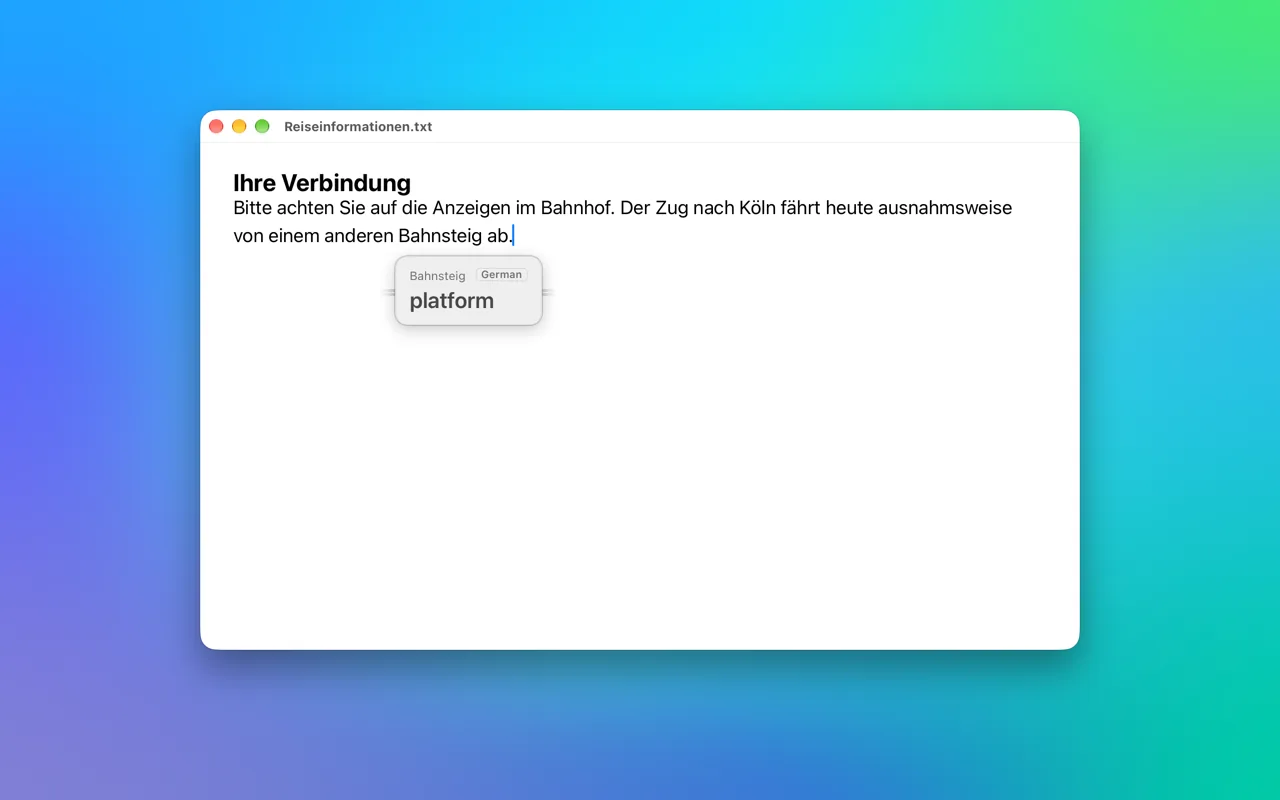
Copying only works on text an app lets you select. For text in images, video, screen shares or app labels, Screen OCR & Translate has another shortcut, Control-Option-D: drag a box around the text, or click a single word, and the translation appears beside it.
FAQ
Why doesn't the translation shortcut read my selection directly?
macOS only lets an app read another app's selection with the Accessibility permission, which is meant for assistive tools, not translators. Copying first hands the text over the ordinary way, and it works in every app.
Does it overwrite what I copied?
No. It only reads the clipboard. If you turn on Copy translation automatically in Settings, the translation replaces it instead, which is handy when you want to paste it straight away.
