A Mac can read the text inside a picture without any extra software. The feature is called Live Text, and it works in Preview, Photos, Quick Look and Safari. It covers most images you have as a file. For text that is only on screen, in an app, a video call or a remote desktop, a screenshot or a screen OCR shortcut gets you the rest of the way.
Method 1: Live Text in Preview or Photos
- Open the image in Preview, or find it in Photos.
- Move the pointer over the text. When it turns into a text cursor, drag across the words you want.
- Control-click the selection and choose Copy Text, or press Command-C.
- Paste it wherever you need it.
If the pointer will not select anything in Preview, choose Tools, then Text Selection. If nothing selects anywhere, check that Live Text is on: open System Settings, then General, then Language & Region, and turn on Live Text. Some languages and regions do not support it yet.
Method 2: take a screenshot, then use Live Text
When the text is on screen but not in a file, press Shift-Command-4 and drag across it. A thumbnail appears in the corner of the screen; click it, and Live Text works in the preview that opens. This is the built-in route for text inside an app, a video call or a web page that draws its text as an image. It also leaves a screenshot file behind each time, which you will want to delete afterwards.
Method 3: one shortcut for anything on screen
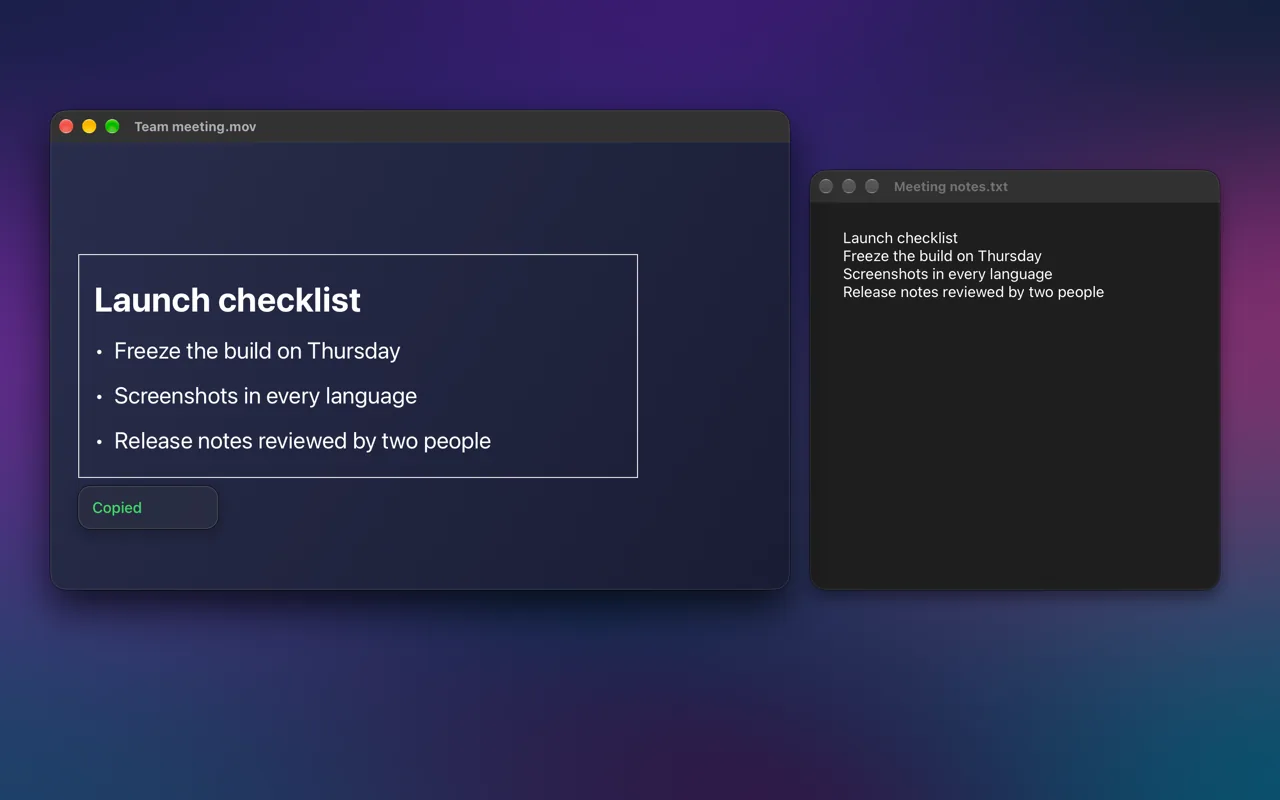
Screen OCR & Translate skips the file. Press Control-Option-C, drag across any text on screen, and it is on your clipboard. It works on things Live Text cannot reach directly: screen shares, remote desktops, third-party video players, and the labels inside apps. Lines keep their line breaks, so a list pastes as a list, and a single click copies just the word under the pointer.
| Method | Works on | Leaves a file | Steps |
|---|---|---|---|
| Live Text in Preview or Photos | Image files and your photo library | No | Open, select, copy |
| Screenshot, then Live Text | Anything on screen | Yes, a screenshot | Capture, open, select, copy |
| Screen OCR & Translate | Anything on screen | No | Shortcut, drag |
Getting a clean result
- Zoom in before you capture. Small, blurry or low-contrast text is where every recognizer makes mistakes.
- Select one column at a time. Text in columns or tables can come out in reading order you did not intend.
- Expect to fix the odd character. Recognition is very good on printed text and less reliable on handwriting and decorative fonts.
FAQ
Do I need to upload the image anywhere?
No. Live Text runs on your Mac, and so does Screen OCR & Translate. Online OCR websites work too, but they upload your image to someone else's server first.
Can I copy text from a PDF that is a scan?
Often, yes. A scanned PDF is a picture of a page, so text selection in Preview may not work directly. Opening the page in Preview with Live Text, or pointing a screen OCR shortcut at it, reads the text from the picture.
