A Mac can translate without an internet connection once the languages it needs are downloaded. That is useful while traveling, and for private material such as contracts, medical letters and internal documents you would rather not paste into a website.
Download languages for offline translation
- Open System Settings, then General, then Language & Region.
- Click Translation Languages.
- Download the languages you will need, both the one you read and the ones you will translate from.
Once a language is downloaded, the Translate item in the Control-click menu works with no connection. Apple notes that some results can be more accurate when processed on its servers, so the same sentence may read slightly differently offline. Do the downloads before a trip, over a connection you trust; they can be removed again from the same list.
Translate images and screen text offline
The built-in Translate wants text you can select. Screen OCR & Translate uses the same downloaded languages for anything on screen: press Control-Option-D and drag a box around a scanned page, a subtitle, a sign in a photo or a foreign-language app, and the translation appears in a card beside it. It only ever uses the on-device languages, and it has no network access of its own, so it works the same in airplane mode.
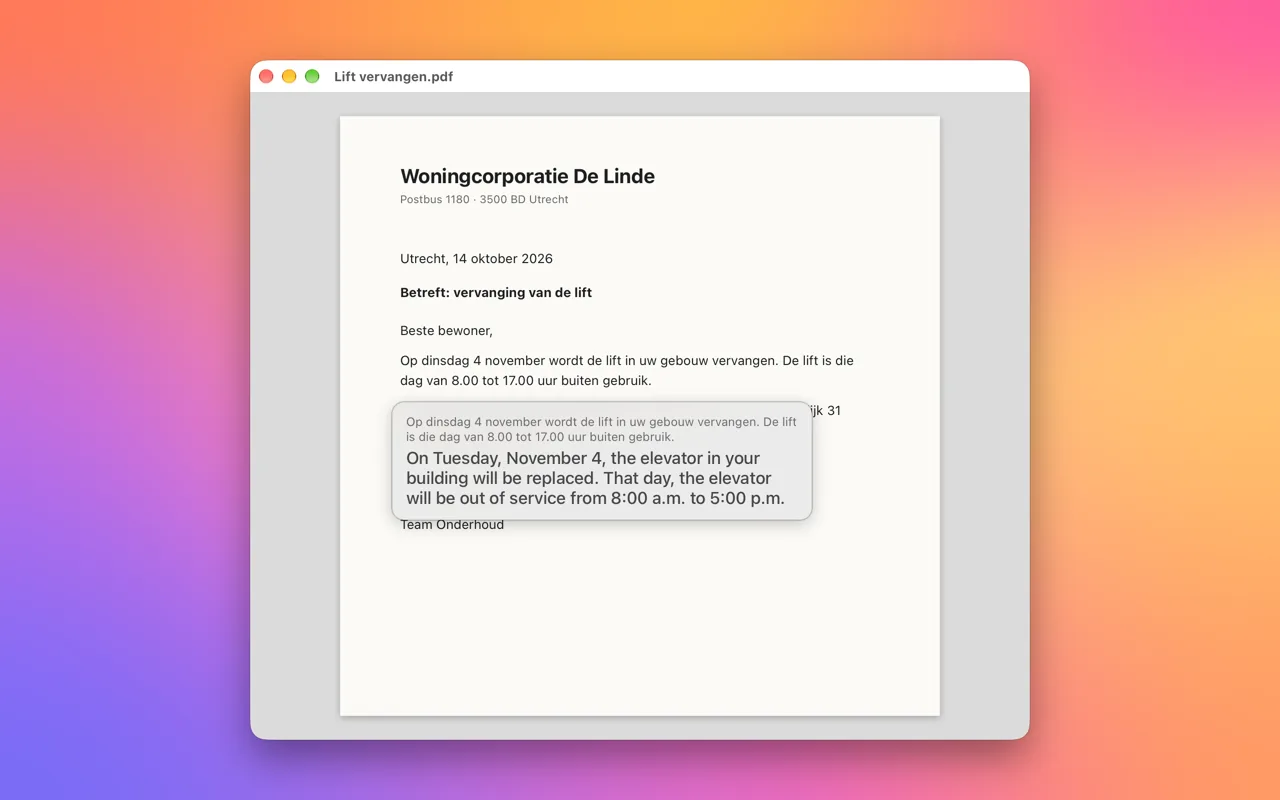
If a language has not been downloaded yet, the card says so and points to Settings, where it can be downloaded once, over any connection.
FAQ
Can a Mac translate without internet?
Yes, once the languages are downloaded in System Settings, General, Language & Region, Translation Languages.
Is on-device translation private?
The text stays on the Mac. Screen OCR & Translate adds nothing on top: no account, no analytics and no network access.
Why am I asked to download a language?
Each language needs its resources the first time. Download them once, over any connection, and translation works offline from then on.
